Render it.Then share it.
Play it once. Xascada renders the performance — every falling note, the look, the impact effect — to a 1080p video, landscape for YouTube or vertical for TikTok, Reels and Shorts, with the built-in synth or your own recording as the sound.
14 days free · full Xascada · cancel anytime
This is what comes out.
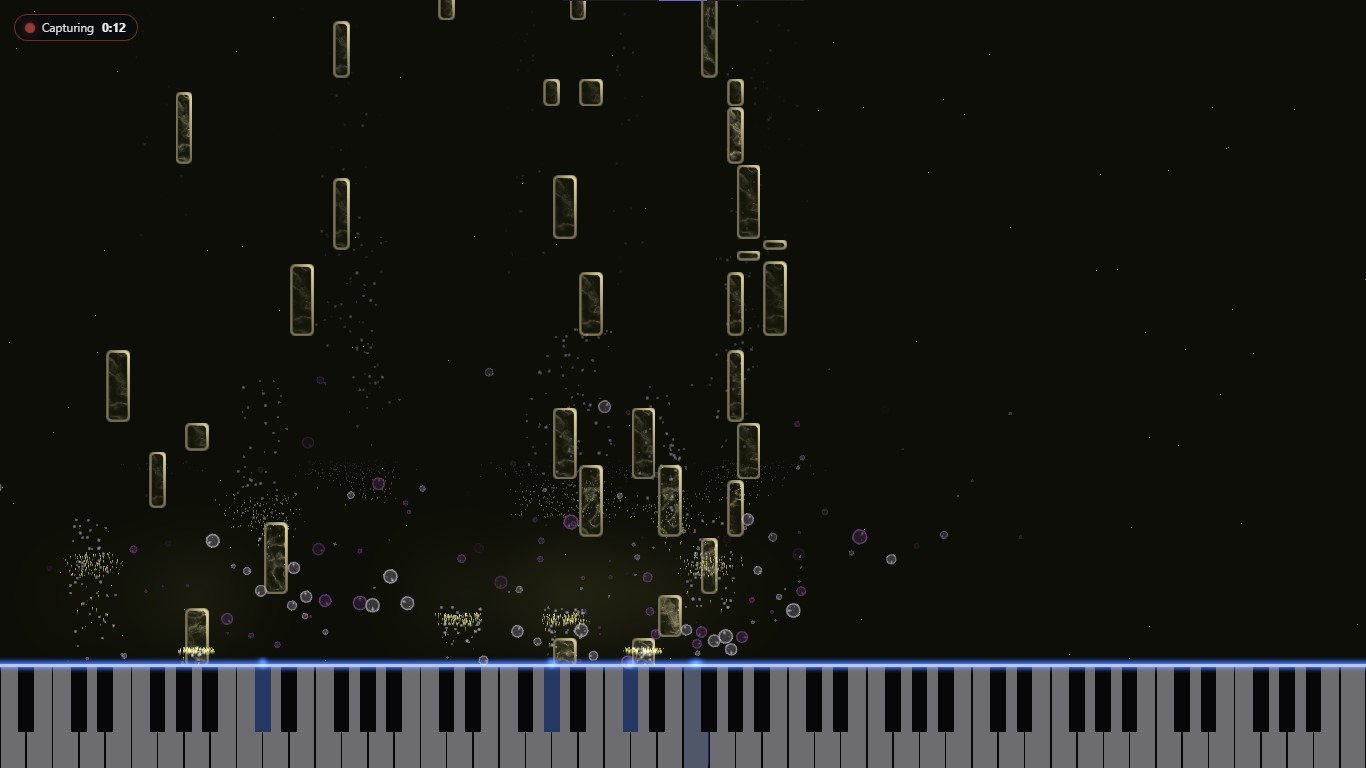
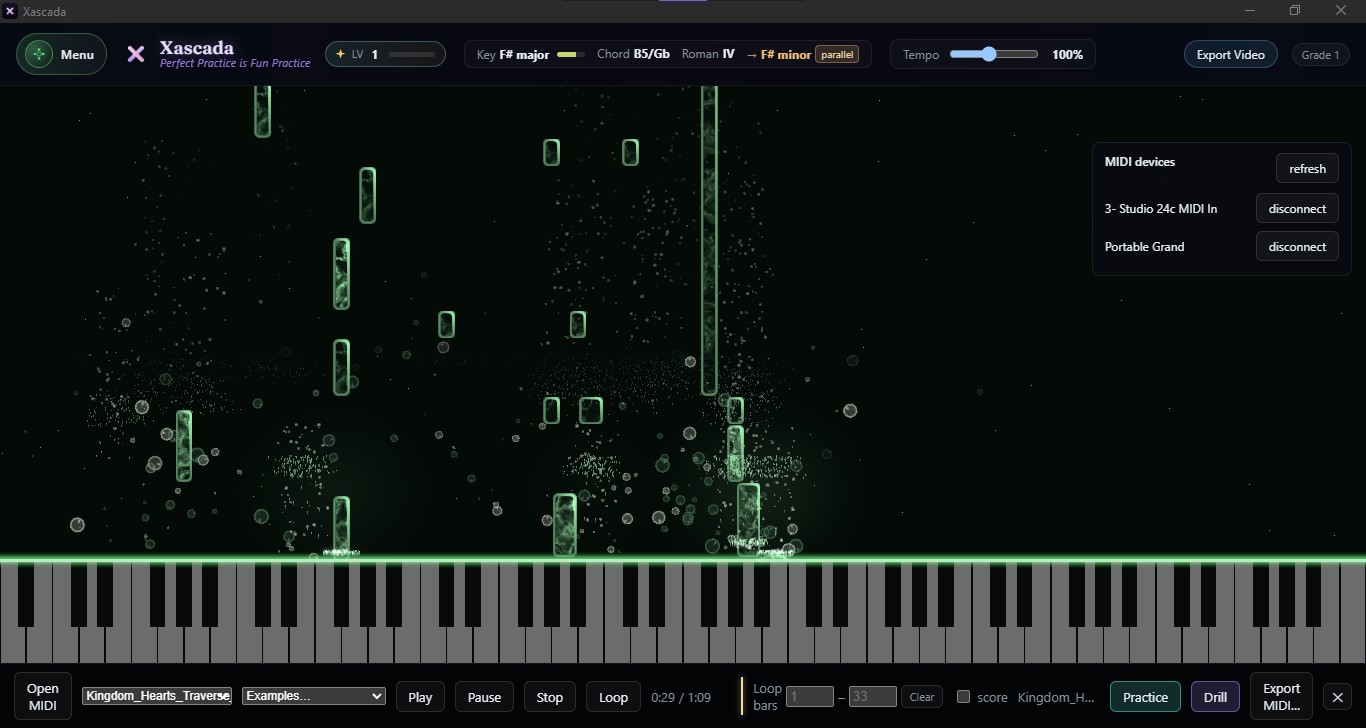
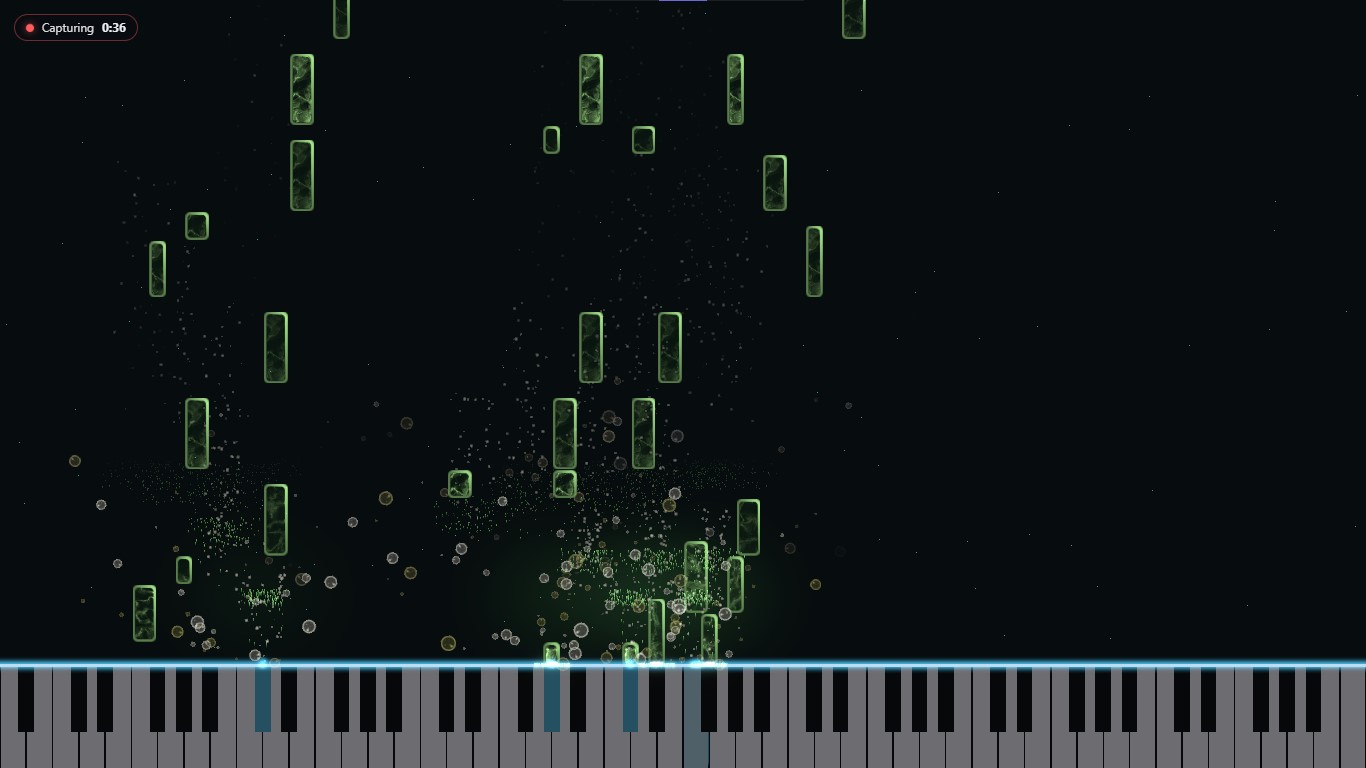
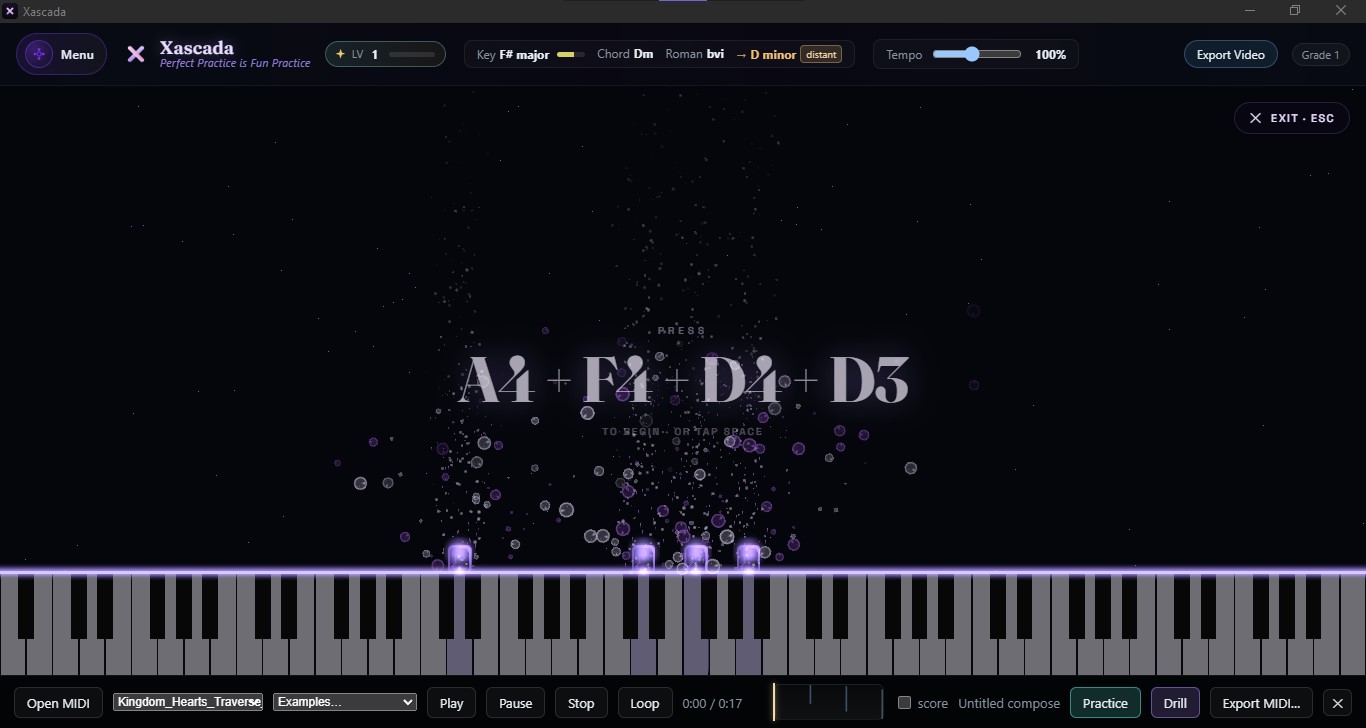
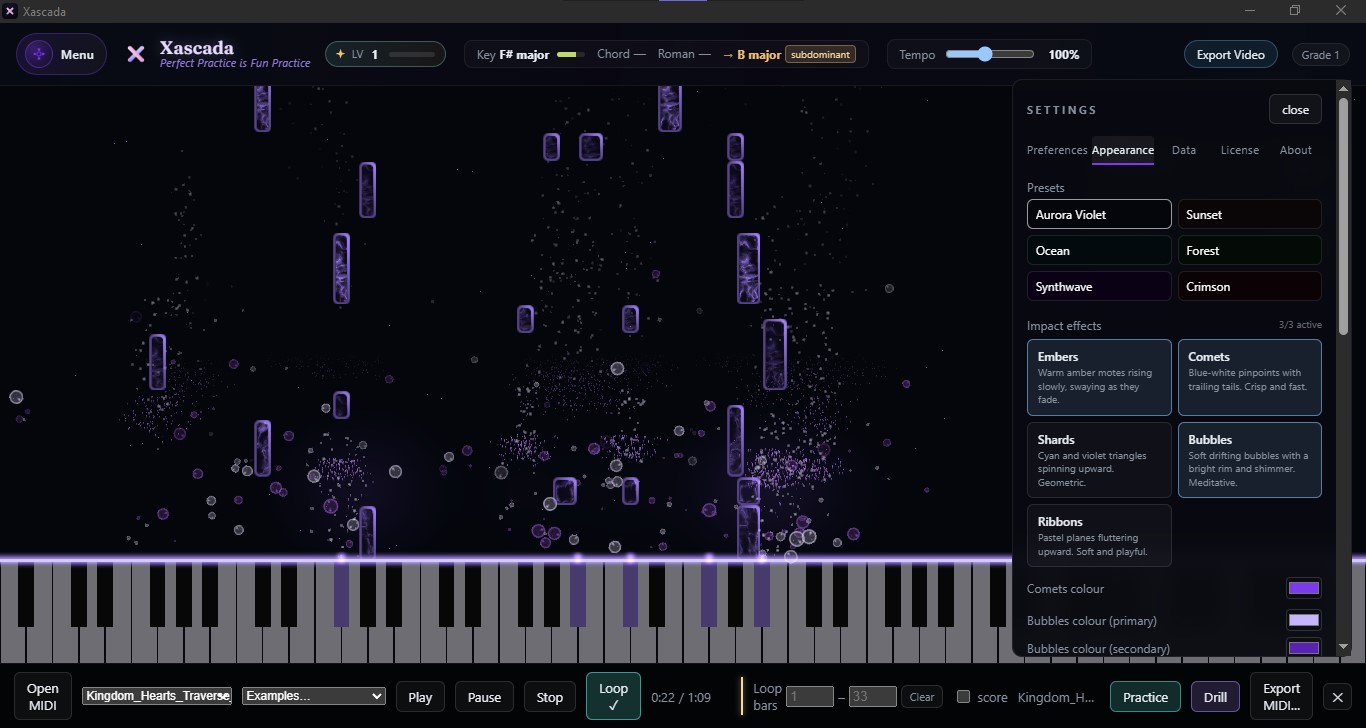
Real exports, rendered by Xascada. What you saw while you played is exactly what you post.
Synth or your own recording. Landscape or vertical, at 1080p.
Open Cinematic Export and the dialog asks two things: which audio — the built-in synth or your own recording — and which format. YouTube 1080p (16:9) renders a 1920×1080 video; TikTok / Reels / Shorts (9:16) renders 1080×1920, reframed for a phone, with the bands those apps cover shaded so you can see what stays visible. Both at 30fps. Both yours.
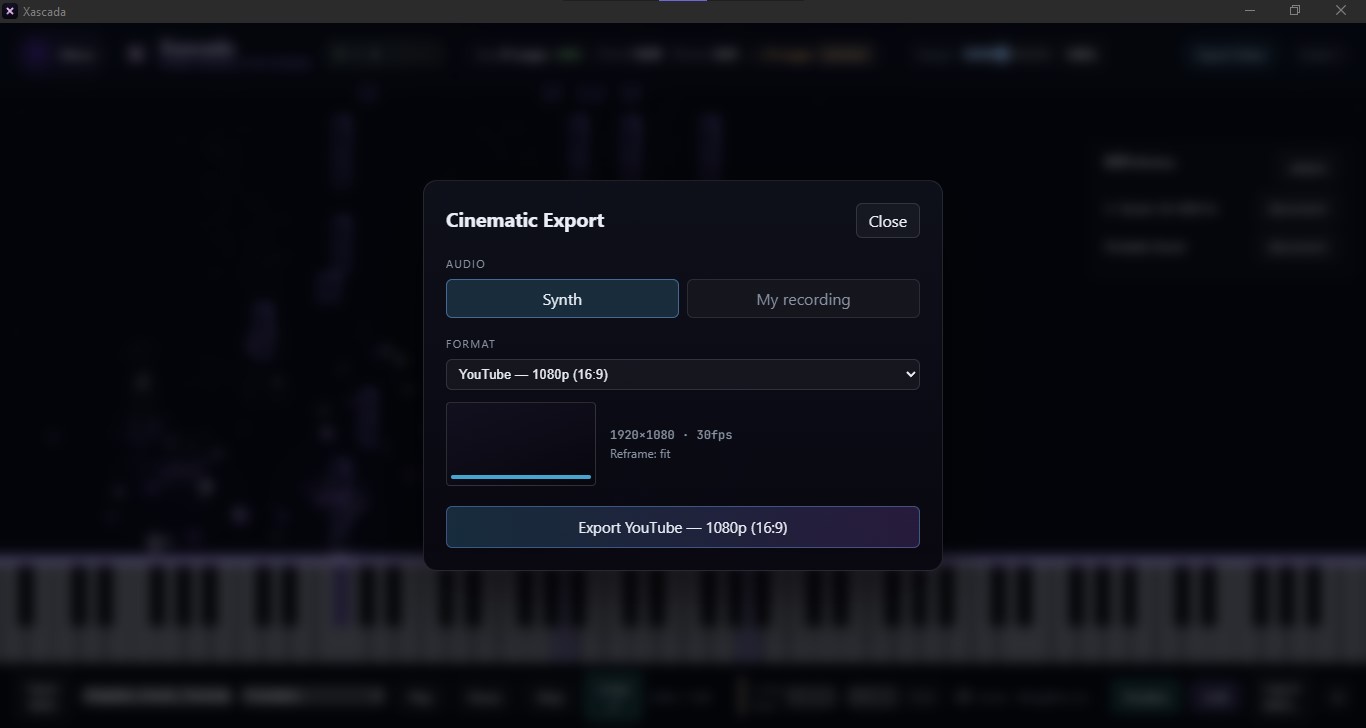
Pick the audio, pick the format — landscape for YouTube, vertical for TikTok, Reels and Shorts.
From a performance to an exported video.
Four steps · about five minutes-
Play or load a performance
Play live over USB MIDI, or open a MIDI file. The notes fall as light on the keyboard while it plays.
-
Choose the look
Pick one of six appearance presets and the impact effect for the falling notes — embers, comets, shards, bubbles or ribbons — or set your own colours.
-
Pick the audio
Open Cinematic Export and choose the audio: the built-in synth, or your own recording.
-
Export to video
Pick the format: YouTube 1080p (16:9, 1920×1080) or TikTok / Reels / Shorts (9:16, 1080×1920), both at 30fps. The vertical export reframes the scene for a phone and shades the bands those apps overlay, so nothing important hides behind a caption. The export carries exactly what you saw while it played.